
My first time using Posted
Welcome to Posted! Let's get you up and running.
How to install Posted
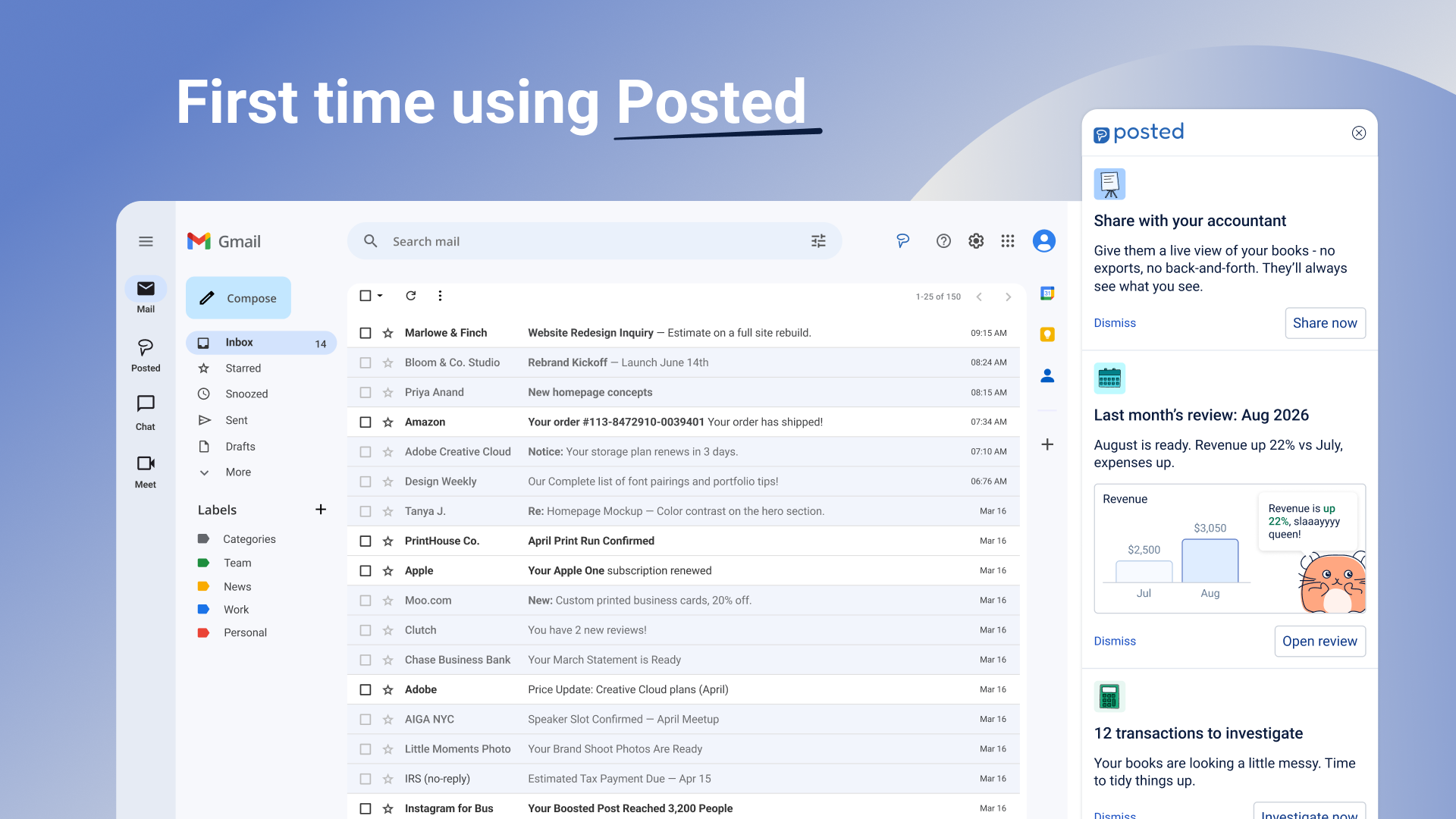
Go to the Chrome Web Store and click "Add to Chrome." You'll be prompted to sign in to Google and grant Posted permission to access your account. Once you're logged in, Posted will begin auditing your inbox, this may take a few hours. While you wait, answer a few quick onboarding questions; these help us make some initial assumptions about you to simplify your taxes later. Once the audit is complete, we'll notify you via the daily feed, a side panel that lives inside your Gmail.
Using the daily business feed
The daily feed is where you see what got done, not a queue of things to triage. The feed is powered by a set of agents that look through your data and identify when something needs your attention. For example, if you receive a Proof of payment but we can't match it to anything on your bank statement we'll ask you for some help. You'll be notified on tax deadlines and even receive a summary of your finances at the end of each month. There is no interface to learn, simply read the notifications and action them accordingly.
Transactions
The transaction list is the working view of your books: every transaction, classified and ready. Posted fetches your mail and labels what's relevant for your business. Each source document gets classified, and the transaction list is built from that with chart of accounts classification attached. Transactions the require some attention are grouped under the "Investigate" tab. To resolve these transactions, simply click on the 'Investigate' button on the relevant transaction. From there you can follow the steps. If you'd like to remove a transaction (perhaps it was a personal expense) you can click on the dustbin icon. The Transactions help article provides more guidance on how to use this feature.
Sales activity
Send invoices and estimates without leaving the tool that already knows your customers and your numbers.
Invoices
An overview shows every invoice you've sent, with quick filters for what's active in the last three months, what's gone quiet in the last twelve, and what ranks largest. Create and send a new one from a template, and share a link directly with your customer.
Estimates
Estimates work the same way: create, send from a template, and share a link with your customer. Effortlessly turn an estimate into an invoice, no need to start from scratch again.
Accounting
The accounting section consists of a profit and loss and journals. If you are the owner of the business, you will rarely need to interact with journals, simply let your accountant know there is a section for journals if they'd like to make use of it. The profit and loss is a report you can check on a monthly basis. This outlines the money you've made and the money you've spent and gives you your net profit at the end of the month. The different views in the profit and loss give you quick access to filtered views that can give you insight into what you spend the most money on and where the biggest changes happened from month to month.
Operations
The people and businesses you deal with, kept current without you entering any of it by hand.
Customers
A list of everyone who's paid you, built from your inbox automatically. Each customer shows total sales, and quick filters let you see who's active in the last three months, who's gone quiet in the last twelve, or who ranks largest by revenue.
Vendors
Same idea, the other direction: everyone you pay, with each vendor's next bill due date front and center. Filter by subscriptions, rank by largest, or find vendors you haven't paid in the past year.
Contractors
For each financial year, Posted tallies what you've paid every contractor and flags when one crosses the $600 threshold that triggers a 1099. When that happens, Posted can request a W9 from the contractor by email, then process what comes back and attach it to their record. One less form to chase down yourself.
Tax
Sole proprietors pay tax through a personal return, not a business one. Posted keeps the business side of that math current all year, so nothing is a surprise at filing time.
Tax summary
Your tax summary is the assumptions behind your numbers and the position you're in right now: filing status, the ruleset version your books are running on, and the key dates for the financial year (quarterly payment deadlines, the filing deadline). Everything else on this page traces back to a line here.
Schedule C
Schedule C is the profit and loss for your business, built to attach to your personal return. It's the same profit and loss your books already produce, reshaped into the categories the IRS wants: gross income, expenses by type, net profit or loss. If a number here looks off, the fix is in the transaction it came from, not on this page.
Self-employment tax
When you work for yourself, there's no employer withholding Social Security and Medicare on your behalf. Self-employment tax is how that gets paid: 15.3% on your net earnings from self-employment, split between the Social Security and Medicare portions, with half of what you pay deductible on your personal return. This is calculated from your Schedule C net profit, so it moves whenever that does.
Estimated tax (Form 1040-ES)
The IRS wants tax paid as you earn it, not in one lump at filing time. Estimated tax is your quarterly payment covering both income tax and self-employment tax on what you've made so far. Posted tracks safe harbor (the minimum you need to pay to avoid a penalty, based on this year's or last year's tax) and tells you what's due and when, ahead of each deadline.
Form 1040
Form 1040 is where it all lands: your personal return, with your business income and expenses folded in alongside everything else (other income, credits, deductions). Because you're a sole proprietor, your business doesn't file separately. Posted keeps the business-side numbers ready so this form is a pull, not a scramble.
Is my data safe?
Your data is encrypted, it stays yours, and it is never used to train AI. Posted reads your inbox only for the documents that matter for your books. No secret tracking, and you can export everything at any time.
Support
If you need help using features, take a look around this Help center. If you have any queries, feel free to send a message to support@posted.ai
Share with my accountant
Give your accountant a way in, without giving them your inbox.
Inviting your accountant
From settings, you can invite users to your Posted account and share access with your accountant directly.
The external view
Your accountant doesn't need a Posted account of their own to see your books. Posted shares the non-email side of your account with a unique link. From there they can make changes and adjustments as and when they need.
How much does it cost?
Posted is free to use and there are no plans to change this to paid plans in the future.
Summary
Posted is AI bookkeeping and tax for US freelancers and one-person businesses, working right inside Gmail. This product is free to use and was built by Xero.