
Invoices & estimates
Send invoices and estimates without leaving the tool that already knows your customers and your numbers.
Where to find it
Open Sales activity from the left nav. It has two pages: Invoicing and Estimates.
You can also start a new invoice or estimate straight from a customer's contact record, or reuse one you've already created. Your Business Feed will let you know when an invoice is overdue or gets paid.
Getting started
The first time you open Invoicing or Estimates, a short setup walks you through how your invoices will look. Jump straight in with the defaults, or customize things: pick a Traditional or Modern layout, upload your logo (Posted tries to match your colors to it automatically), and choose a color and font. This only appears once, but you can always change it later from Invoice settings.
Creating an invoice
Give it a customer, a payment term, and at least one line item, and Posted handles the rest.
The basics. Your invoice number is assigned automatically (you can adjust the starting number in settings). Pick an issue date and payment terms (Due on receipt, or Net 15, 30, 60, or 90), and Posted works out the due date for you, though you can always override it. Payment terms default to whatever you've set for that customer, then your standard terms, then Net 30 if neither is set. Choose who you're billing from your customer list, or add someone new right there without leaving the invoice.
Line items. Pull items straight from your Items catalog, so the price and category fill in automatically, or add something new on the fly. Beyond regular line items, you can add plain headings, blank rows, free text, or a running subtotal to keep a longer invoice organized, and drag rows to reorder them.
Tax and discounts. Decide whether your prices already include tax or not, then add tax per line as a percentage or a flat amount. Discounts work the same way, either on a single line or across the whole invoice.
Totals and payment details. Your subtotal, tax, discount, and total due are calculated automatically, and you can hide any row you don't need. If you've already collected a deposit, add it here so the balance due reflects what's left. Enter your bank details once (name, account, and routing numbers) and Posted keeps them on file for every invoice, and add a free-text note or thank-you message at the bottom if you'd like.
Before you can send or finalize an invoice, Posted checks that you've got an invoice number, issue date, due date, customer, at least one item, and your bank details on file.
Sending and tracking invoices
When you're ready, you can save an invoice as a draft (nothing sent, doesn't count toward your books yet), save it as ready to send (finished and counted, just not delivered yet), or save and send it right away by email or by sharing a link.
Once sent, your customer gets a hosted page they can open without logging in: they can view the invoice and pay it instantly with a Pay Now button. Posted isn't the one processing that payment; it runs through Stripe, including Apple Pay, and Posted records the result for you.
An invoice moves through a few statuses: Draft, Ready to send, Sent, Overdue, Partially paid, and Paid. If a due date passes, Posted flags the invoice Overdue for you after a short grace period.
If someone pays you another way, like a bank transfer, cash, or check, record it yourself with the date, amount, method, and a reference number. Partial payments are tracked individually, and the invoice shows as Partially paid until it's settled in full.
If you and a customer disagree on an invoice, mark it In dispute. This pauses any automatic reminders while it's sorted out, and the balance stays counted as outstanding. Speaking of reminders, Posted can send these automatically based on your invoice due dates, so you don't have to chase payment yourself.
If a customer won't pay and you need to write off the balance, you can do that for all or part of an invoice. It shows separately on your aging report and customer statements as written off. This mostly applies if you report income on an accrual basis; most sole proprietors report on a cash basis, so check with your tax advisor before writing anything off.
Every invoice keeps a history of what's happened to it (created, sent, paid, and so on), so you can always see the full story. Made a mistake? Reuse an invoice to start a new one with everything pre-filled, or void it if it was sent in error (this can't be undone). Draft invoices can simply be deleted.
Estimates
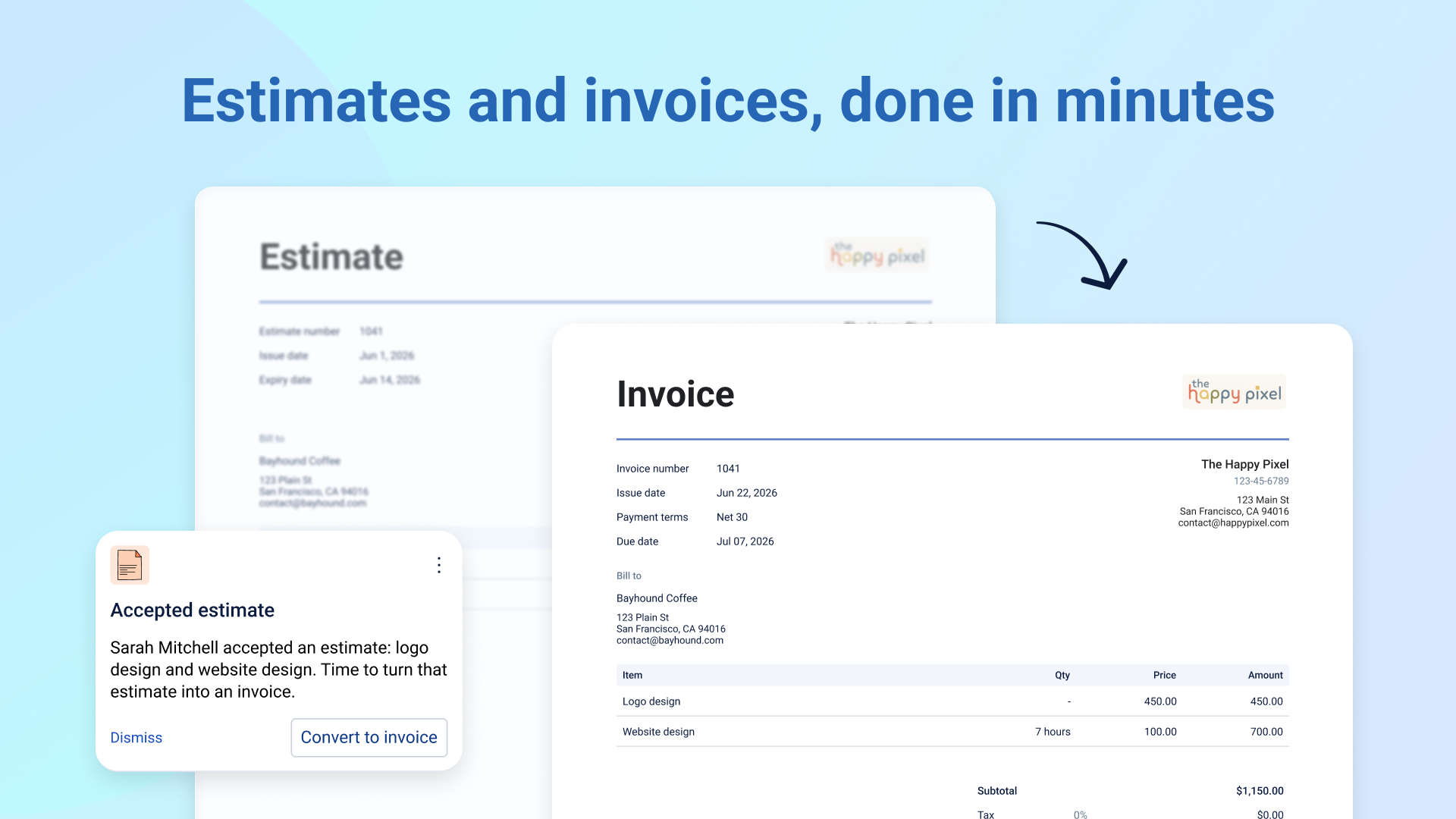
Estimates let you quote a job before it becomes an invoice. They work almost exactly like invoices: the same setup, layout, line items, tax, and discounts, just with an estimate number instead of an invoice number, and an expiration date instead of a due date.
An estimate moves through its own set of statuses: Draft, Sent, Queried, Accepted, Declined, and Expired. Nothing about an estimate touches your books; it's purely a quote until you turn it into an invoice.
Once your customer's on board, convert the estimate straight into an invoice with everything carried over, ready to send. You can also reuse an estimate's content to start a new one, or view its history and delete it, the same way you would with an invoice.
Your customers
Everyone you invoice or quote comes from your Customers list, and each one keeps its own default payment terms alongside their regular details. For more on managing customers, vendors, and contractors, see the Operations help article.