
Operations
The people and businesses you deal with, kept current without you entering any of it by hand.
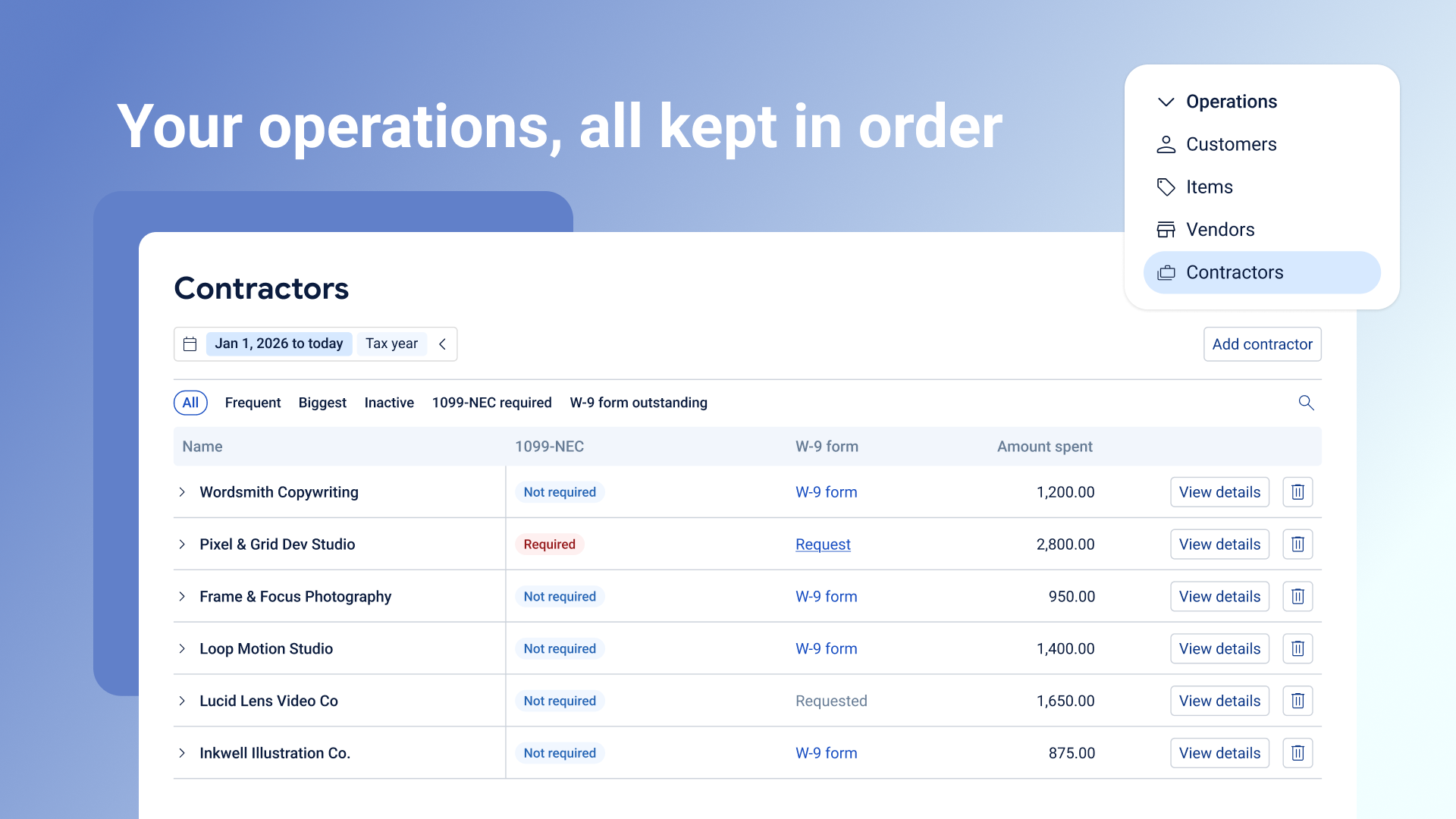
Operations is where you keep track of who your business runs on: the customers who pay you, the vendors and contractors you pay, and what you actually sell. Most of it builds itself. As your invoices, bills, and payments come in, Posted works out who's who and keeps their records updated, so you rarely need to add anything by hand.
Where to find it
Open Operations from the left nav. You'll find four pages: Customers, Items, Vendors, and Contractors.
Your Business Feed will also link you straight to a specific customer, vendor, or contractor when there's something worth a look.
A few things that work the same way everywhere
Posted fills this in for you. As transactions come through, Posted recognizes who paid you and who you paid, and adds them here automatically. If someone hasn't shown up yet, like a new customer you haven't invoiced, you can add them yourself.
View details. Click "View details" on any row to open a side panel with that contact's history and information, which you can edit any time.
Previewing transactions. Click the arrow next to a name to preview their most recent transactions right in the table. Click the external link icon to open their full transaction history, with search and editing.
Removing someone. The bin icon takes a customer, vendor, or contractor off this page. Their past transactions aren't deleted. You'll still find them in your full transaction list.
Customers
Customers are the people and businesses paying you. Posted adds them automatically from your invoices and incoming payments, or you can add one yourself with the "Add customer" button (name and email are required; phone, website, and address are optional).
The list sits alphabetically by default. Switch views to see customers active in the last 3 months, inactive in the last 12 months, or ranked by how much they've earned you.
Each row shows the total amount earned from that customer, covering every transaction linked to them no matter how it's categorized. Opening "View details" gives you a quick summary (paid invoices, total income, and how long they've been a customer), a look at your recent email activity with them, and their contact information.
Vendors
Vendors are who you pay for goods or services. Posted adds them automatically from your bills and outgoing payments, or you can add one yourself (only the vendor's name is required to save).
Alongside the full list, you can view vendors ranked by amount spent, inactive over the last 12 months, or marked Recurring. If a vendor bills you on a steady schedule, Posted notices the pattern and tags them Recurring, so you can see at a glance which costs repeat on their own.
Each vendor's row shows the total amount spent with them, and a purple "Contractor" pill if that vendor is also flagged as a contractor. When adding or viewing a vendor, you'll see a "Label as contractor" toggle. Turning it on lets you request or upload a W-9 form for them right there.
Contractors
Contractors are vendors who need extra attention at tax time. A vendor becomes a contractor when you pay them through your Contractors category, when a W-9 form comes in for them, or when you flag them yourself with the toggle. They still show up in your Vendors list too.
As a sole proprietor, you're required to send a 1099-NEC to any contractor you pay $2,000 or more in a calendar year. This page keeps track of that for you:
1099-NEC shows Required or Not required, based on what you've actually paid that contractor so far this tax year.
W-9 form shows whether you still need to request one, whether you're waiting on a reply, or gives you a link to the form once it's on file.
To request a W-9, click "Request," review the pre-written email, and send it. When your contractor replies with the form attached, Posted picks it up automatically and marks it received. You can also upload one yourself if it arrives another way, like in person or through a different email.
Use the filter tabs (All, Frequent, Biggest, Inactive, 1099-NEC required, W-9 form outstanding) to quickly see who needs a form or is approaching the $2,000 threshold. Switching between "All time" and "Tax year" only changes which contractor names are listed. Your 1099-NEC status and total amount spent always reflect the full picture, not just the period you're viewing.
Removing a contractor just removes the contractor label. They stay in your Vendors list, and their transactions stay put.
Items
Items is your catalog of what you sell, so you can build an invoice from a saved item instead of typing the same thing every time.
Every item is either a Service or a Product, and each has its own way of being priced: services can be a set price or billed per hour, day, week, or month; products can be a set price or priced per unit. You can add an item from the Items page, or on the fly while building an invoice.
The table shows the item's name (with the code you gave it, if any), its pricing method, its price, and Amount earned, the cash you've actually received against that item so far. Removing an item takes it off future invoices. Anything you've already invoiced is unaffected.