
Business feed
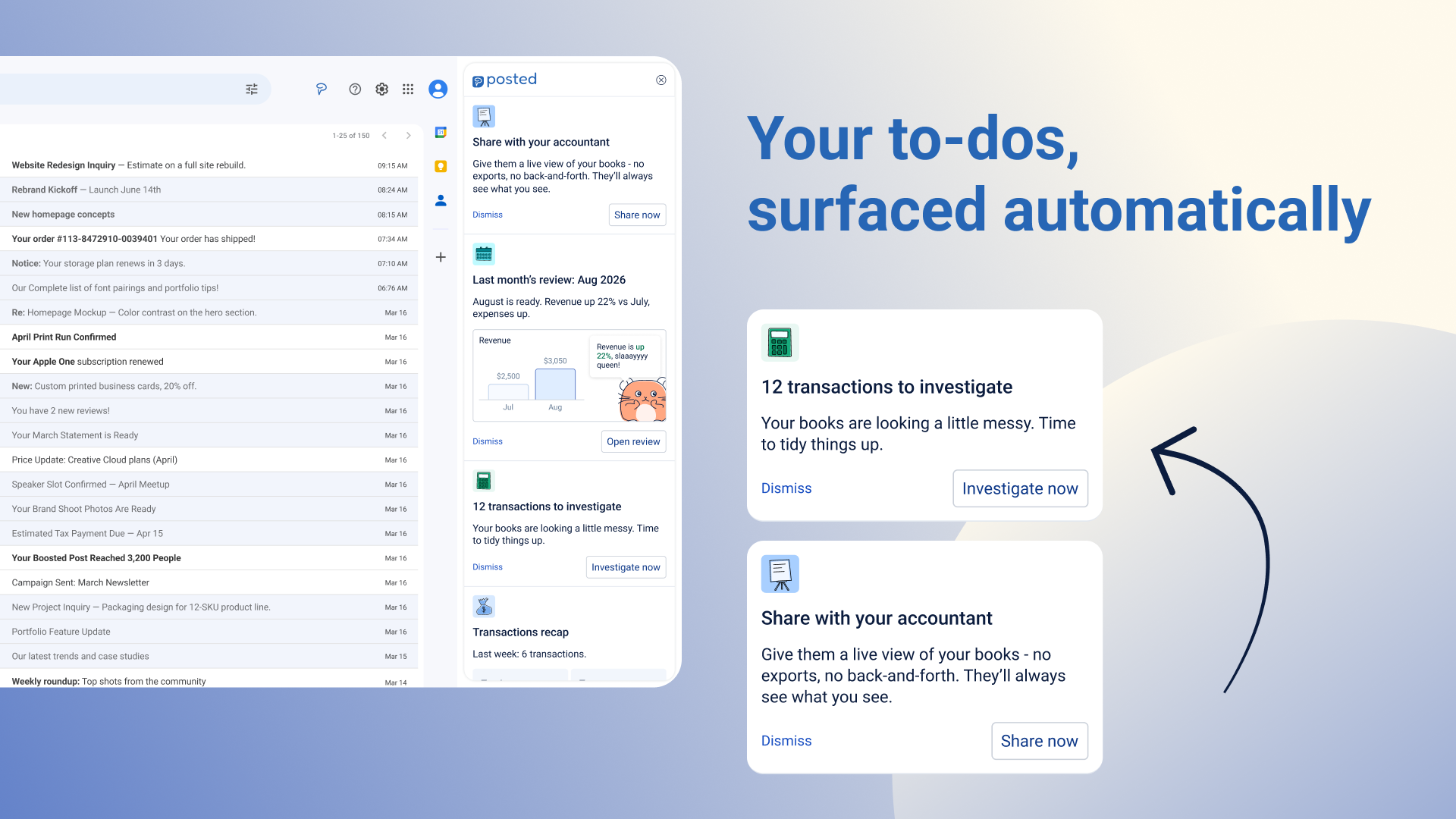
Using your business feed
Your business feed lives right inside Gmail and does the job of a sharp assistant tapping you on the shoulder at the right moment. It surfaces the things worth your attention: a transaction that needs a decision, a tax deadline coming up, a deduction you might be missing, or a setup task you haven't finished yet. You don't need to go looking for any of it. It comes to you.
Where to find it
Look for the Posted icon in your Gmail sidebar. Clicking it opens the feed panel, which stays open alongside your inbox for as long as you want it there. Click the collapse button in the top right to close it again.
If you click "Investigate" on a transaction card in the feed, it will take you straight to the matching transaction in Posted.
How the feed is organized
It's a single list you scroll through, not a set of tabs or folders. The most important thing is always at the top, so you don't have to hunt for it. As things get resolved or become less urgent, the list reorders itself.
Cards generally fall into a few areas of your business:
Getting set up. Quick tasks when you're new, like reviewing your business details or connecting your accountant.
Tidying your books. Things Posted noticed that need a decision, like a possible duplicate or an unusual transaction.
Tax. Deadlines, estimates, and assumptions worth double checking before they catch up with you.
Deductions and savings. Opportunities you might otherwise miss.
Cash flow. Signals about the money coming in and going out of your business.
If nothing needs your attention right now, the feed simply says: "Nothing to see here right now."
Reading a card
Every card gives you three things:
A title, so you know what it's about at a glance.
A short explanation, usually a sentence or two, telling you what's going on and why it matters. Amounts, names, and counts are often called out in bold.
An action button in the bottom right, like "Review now," "Resolve now," "Invite now," or "View."
Some cards also include a small visual, like a chart or a summary, when it helps make the point faster than words would.
You'll always find a Dismiss link at the bottom left. Tapping it clears the card without changing anything in your books. Depending on the card, it may come back later if the same thing needs your attention again, or it may not come back at all.
Some cards also have a small menu (the three dots in the top right corner) with a few extra options, like unlinking a document, fixing something that was captured incorrectly, adding another document, or asking to be reminded later.
Acting on a card
Most cards work the same simple way:
You see it. The card tells you what's going on.
You act on it. Tapping the main button either opens a short form right there in the card, or takes you straight to the right place in Posted to finish the job.
You get a confirmation. Once you're done, a quick, friendly message lets you know it's sorted.
A handful of cards skip the middle step entirely. Tap the button once, and you're done, for example when you're asking Posted to send a request on your behalf.
Nothing in the feed takes more than a few taps. If something needs more from you than that, Posted will just take you to the right page to finish it there instead.
A few examples
Share with your accountant. Generate a link and set a password so your accountant can see your books without you exporting or emailing anything back and forth.
Review business details. A two minute check of the details that show up on every invoice and tax filing you send, so nothing goes out with a typo baked in.
Confirm tax assumptions. A quick check-in before a deadline, so you're not caught off guard when the bill comes due.
A note on staying on top of it
The feed is designed to only show you what's genuinely worth your time, so it's worth a glance whenever you're in Gmail. Dismissing a card is always safe. It never changes your books, it just clears the nudge for now.